
A website can look modern, fast, and visually polished—but still be difficult or even impossible to use without a mouse. That’s where keyboard navigation becomes critical.
Keyboard navigability means a site can be fully operated using only a keyboard. No mouse, no touchpad, no tapping. Just keys like Tab, Enter, Space, Arrow keys, and Esc.
It’s not a niche requirement. It’s a baseline for accessibility, usability, and in many cases, legal compliance.
Why Keyboard Navigation Actually Matters

Most users interact with websites using a mouse or touchscreen. But a significant number don’t—or can’t.
Some people have motor impairments that make mouse use painful or impossible. Others rely on keyboards due to vision impairments and screen readers. Even beyond disability, many power users prefer keyboard navigation because it’s faster and more efficient.
When a site is not keyboard-friendly, it silently excludes part of its audience. That exclusion can also lead to legal risk under accessibility laws such as the ADA, which courts often interpret using accessibility standards like WCAG.
There have already been lawsuits where companies were challenged over missing or broken keyboard accessibility features. The legal outcome varies, but the risk is real enough that accessibility is no longer optional for serious digital products.
How Keyboard Navigation Works
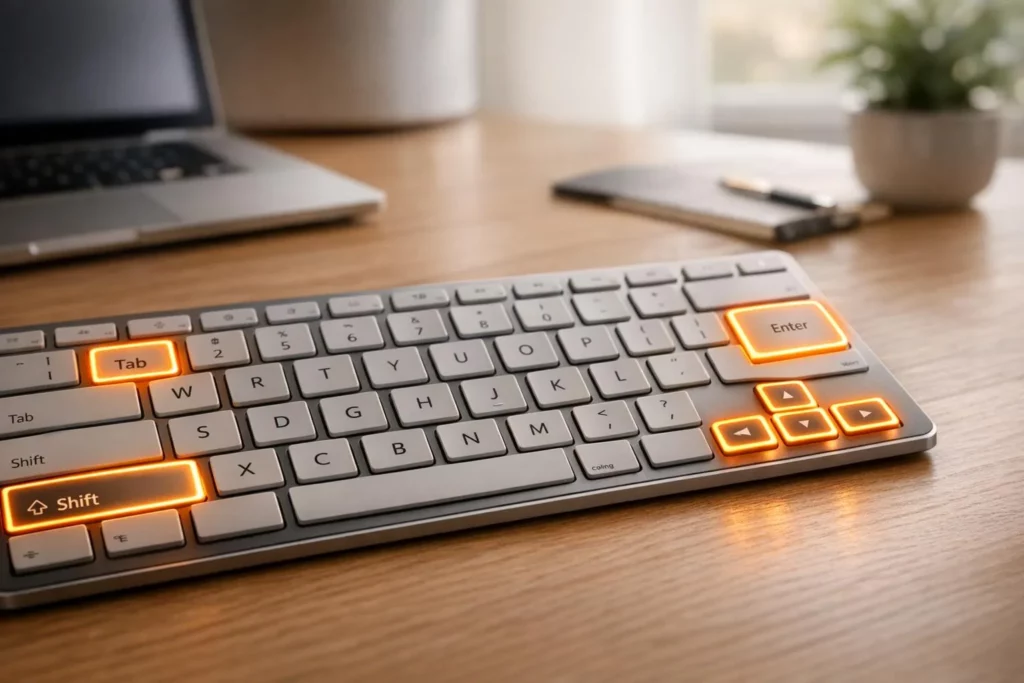
Keyboard navigation relies on predictable interactions:
- Tab / Shift + Tab → Move forward and backward between interactive elements
- Enter / Space → Activate buttons, links, and controls
- Arrow keys → Navigate menus, lists, sliders, or scroll in some contexts
- Esc → Close modals, dropdowns, or overlays
A properly built site lets users move through all interactive elements in a logical sequence and activate them without needing a mouse.
Core Elements of a Keyboard-Navigable Site
1. Focus Indicators
When a user presses Tab, the currently selected element must be visibly highlighted.
This is called the focus indicator.
It might look like:
- A border around a button
- A highlighted background
- A glow or outline
The key requirement is clarity. Users must always know where they are on the page.
A common accessibility mistake is removing focus styles in CSS (for example using outline: none). That breaks usability for keyboard users.
2. Logical Tab Order
The order of navigation matters as much as visibility.
Pressing Tab should move through elements in a predictable flow:
- Left to right
- Top to bottom
If the focus jumps randomly—say from a header link to a footer icon and back—it creates confusion and makes navigation unreliable.
Poor tab order often comes from:
- Misaligned HTML structure
- Improper use of positioning in CSS
- Custom components that ignore natural DOM order
A good keyboard experience should feel linear and intentional.
3. Skip Navigation Links
Keyboard users shouldn’t be forced to tab through every menu item every time they load a page.
Skip links solve this.
They allow users to jump directly to:
- Main content
- Navigation
- Search
- Key sections of a page
These links usually appear as the first focusable elements when pressing Tab. They may be hidden visually but must become visible when focused.
4. Fully Interactive Controls
Every interactive element must be usable without a mouse.
That includes:
- Buttons
- Links
- Dropdown menus
- Modals
- Sliders
- Form inputs
If something can be clicked, it must also be:
- Reachable with Tab
- Activated with Enter or Space
- Controllable via keyboard events where appropriate
A dropdown that only opens on mouse hover is a failure of keyboard accessibility.
5. Screen Reader Compatibility
Keyboard navigation and screen readers often overlap.
When an element is focused, it should:
- Be readable by assistive technology
- Communicate its purpose clearly
- Provide state information (e.g., expanded/collapsed, selected/unselected)
Poor semantic structure breaks both keyboard navigation and screen reader usability at the same time.
Common Problems in Keyboard Accessibility

Many sites unintentionally break keyboard navigation in subtle ways:
- Focus disappears or is invisible
- Tab order jumps unpredictably
- Modals trap users or cannot be exited with Esc
- Buttons exist visually but are not reachable via keyboard
- Custom UI components ignore native keyboard behavior
These issues often come from prioritizing visual design over interaction design.
How to Test Keyboard Navigability

The simplest test is also the most effective:
Use only your keyboard.
Open a website and try to:
- Press Tab repeatedly
- Navigate through every interactive element
- Activate buttons using Enter or Space
- Close popups with Esc
- Reach all important sections without a mouse
If you get stuck, lose focus, or cannot reach something, the site is not fully keyboard accessible.
WCAG-Based Requirements (Simplified)
Accessibility guidelines such as WCAG generally require:
- All interactive elements must be keyboard accessible
- Navigation must be logical and predictable
- No keyboard “traps” where users cannot exit a component
- Visible focus indicators must always be present
- Keyboard-only interaction must be fully supported
These are not advanced enhancements—they are baseline expectations for modern web experiences.
Why This Matters Beyond Compliance
Keyboard navigation is often framed as an accessibility requirement, but it’s also a quality signal.
A well-built keyboard experience usually means:
- Cleaner HTML structure
- Better semantic design
- More consistent UX logic
- Stronger usability across devices and input methods
Even users who never rely on keyboards benefit indirectly from these improvements.
Conclusion
A keyboard-navigable site is not just one that “works without a mouse.” It is a site that respects different ways of interacting with digital content.
It means:
- Every action is reachable
- Every state is visible
- Every flow is predictable
- Nothing depends on a single input method
In practice, keyboard navigation is one of the clearest indicators of whether a website is truly well-designed—or just visually complete.